The Problem
You’re getting great range one day—5 or 6 miles—and the next day you’re only getting a mile. What changed? This is one of the most common questions we hear and the answer may not be what you expect.
The Short Answer
For practical RTK distances, signal loss is about obstructions between your transmitter and receiver—not distance itself.
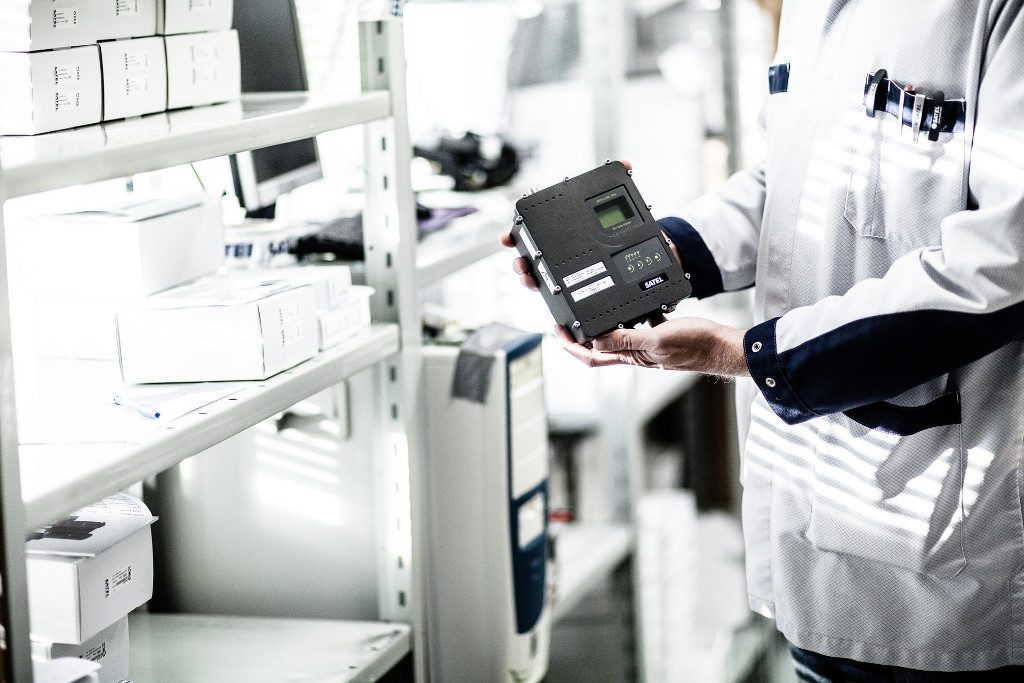
Your Satel 35W radio has enough power to get to the moon or even farther. But it can’t go through a mile of solid terrain, even though the moon is significantly farther away. That’s the fundamental principle of radio range for typical Satel radio use cases: obstructions matter, distance alone does not.
Why Range Varies Between Locations
Not all locations are created equal. Just because you got 5 miles with your exact same setup at one job site doesn’t mean you’ll get 5 miles at another. Here’s why:
- Terrain changes – Hills, valleys, and elevation differences
- Built environment – Earth, metal, and concrete are very effective at absorbing radio waves. Wood and glass will also reduce signals to a lesser degree
- Natural environment – Trees and other vegetation reduce signal levels
- Your position on the job site – Working locations on a job site can be drastically different throughout the day
The key insight: You can receive a signal at -70 dBm at 5 miles in one location, and receive the same -70 dBm signal at only 1 mile in another location. The signal strength is the same despite one link being much farther because the obstructions are different.
Basic Troubleshooting Checklist
Before assuming you have a hardware problem, check these basics:
1. Antenna Connections
- Are all antennas screwed in tight?
- Are connectors clean, dry, and free of corrosion?
- Check both base and rover antennas
2. Cable Inspection
- Look for cracked jackets on antenna cables
- Check for exposed wiring or visible damage
- Damaged cables are uncommon but simple to spot
3. Antenna Orientation
- Antennas need to be oriented the same direction (vertical is most common)
- Not crooked, tilted, or sideways
4. Antenna Height
- Is your transmitting antenna as high as possible?
- There’s potentially a huge difference in range transmitting at 5 feet above ground level vs 10 feet or more
- Antenna tripods are available for temporary installs that need more height
The #1 Solution: Antenna Height
Getting your transmitting antenna higher is the best way to increase range.
Why Height Matters
Higher antennas can “see over” obstructions that would completely block antennas at a lower height. Even a 10-foot increase can sometimes make the difference between no signal and full RTK lock.
Practical Height Solutions
- Use a tripod with an extension pole – Our K-YKIT-AK (Radio Antenna Tripod) gets you up to 13 feet (4 m) total elevation
- Tripod extends to 5.5 ft (1.7 m)
- Telescoping mast reaches 7.5 ft (2.3 m)
- Combined height: 13 feet (4 m)
- Mount on top of structures – Construction offices, vehicles, existing buildings
- Avoid ground-level setups – Shoulder height (~5 feet) is often insufficient for long distances
Example Scenario:
Problem: Base antenna at shoulder height (5 feet) next to the construction office, trying to reach equipment on the other side of the building.
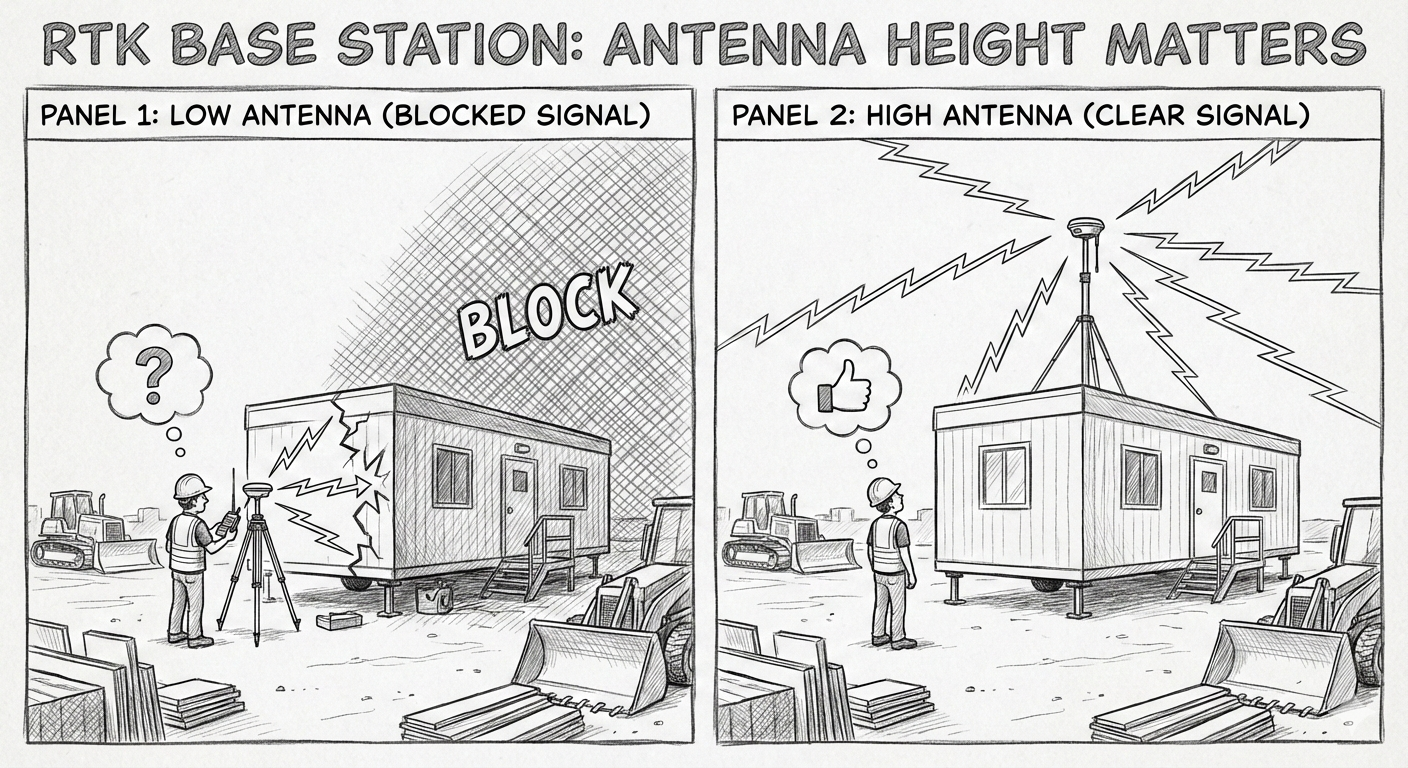
Solution: Mount the radio antenna on top of the construction office. This:
- Eliminates the building obstruction
- Adds significant height
- Extends range in the previously blocked direction
Counter-Example: Building a road through a forest with tall trees. Moving your antenna from 5 feet to 10 feet makes no practical difference because the trees are still blocking the signal. In this case, you might need to use a repeater radio or another approach.
What About the Receiver Antenna?
While the transmitting (base) antenna is usually easier to raise, raising the receiving (rover) antenna helps an equal amount. If you can get your rover antenna higher—even by a few feet—it can improve your link strength.
Related Resources
- Line of Sight and Radio Range – Understanding how obstructions affect signal propagation, and why the earth itself can be a key obstruction on longer links
- K-YKIT-AK Radio Antenna Tripod – 13-foot tripod and mast solution for optimal base station height
Need help?
Contact SATEL USA technical support for site-specific guidance and troubleshooting assistance.
Phone: (408) 973-1740
Email: support@satelusa.com